
What if I told you connecting a JavaScript front end to a backend is easier than most tutorials pretend?
In this post you’ll build a tiny server, add one endpoint, and fetch its data from the browser.
You’ll see how to handle CORS (browser rules that block cross-origin requests) and how to debug the usual errors.
By the end you’ll have a working flow: click a button and show live data from your server.
Follow along and you’ll have a real, testable app in minutes.
Core Concepts Behind Frontend–Backend Communication

When you build a project with both a frontend (what users see) and a backend (where data lives and gets processed), you’re actually building two separate programs that need to talk. Here’s the flow: your JavaScript sends an HTTP request to your backend server asking for data, the backend does its thing and sends back a response (usually JSON, which is just a text format JavaScript can read), and then your frontend uses that data however it needs to. It’s kind of like texting someone and waiting for a reply, except you’re swapping data instead of emojis.
Beginners get confused when their frontend runs on one port (maybe 5500) and their backend runs on another (like 3000 or 8000). This is fine. Ports are just labels that help your computer figure out which program you’re trying to reach. When you go to localhost:3000 in your browser, you’re telling it “connect to whatever’s listening on port 3000.” Your frontend sends requests there, and if your backend’s running on that port, they’ll communicate just fine.
After your backend responds, your JavaScript grabs that JSON and does whatever you want with it. Display it, store it, pass it around. The browser doesn’t care what’s happening inside your backend. It asked for data, got an answer, done. That separation keeps things clean and means you can change one side without wrecking the other.
Setting Up a Simple Backend for JavaScript Front End Integration

Your backend is just a tiny server waiting for requests. Easiest way to build one? Node.js and Express. Create a folder for your backend, open it in your editor, and run npm init -y to get a package.json file going. Then install Express with npm install express. Make a file called app.js and throw in const express = require('express'); at the top, then const app = express();. Tell it to listen on a port: app.listen(3000, () => console.log('Server running on port 3000'));. Run node app.js in your terminal and you’ve got a server.
Now give your frontend something to request. Before the app.listen line, add app.get('/secretmessage', (req, res) => { res.send('The martians are hiding underground!'); });. Visit http://localhost:3000/secretmessage in your browser and you’ll see that text. Want JSON instead? Swap res.send for res.json({ message: 'The martians are hiding underground!' });. Either way, you just made an endpoint that returns data.
Your backend folder should look something like this:
- package.json – project info and what you’ve installed
- app.js – your server code with routes
- node_modules – all the installed stuff (express, cors, whatever else)
- Example GET endpoint – a route like
/secretmessagethat sends back a response
Using Fetch to Connect the JavaScript Front End to the Backend

On the frontend, make an index.html with a button and a <p> tag where you’ll show what comes back from the server. Add <script src="script.js"></script> before the closing </body>. In script.js, grab your button with document.querySelector('button') and attach a click event. Inside that event, call fetch('http://localhost:3000/secretmessage'), then chain .then(res => res.text()), then another .then(data => { document.querySelector('p').textContent = data; }). Click the button and fetch fires off a GET request, waits for the response, reads it, and dumps it into your paragraph.
Want JSON instead of plain text? Change res.text() to res.json(). Then you can access stuff like data.message and display it however you want. Just make sure your backend’s actually running (node app.js) before you test. You can open index.html straight in a browser or use the Live Server extension in VSCode, which auto-refreshes when you save.
Here’s how the whole connection works step by step:
- Fire up your backend with
node app.jsin the terminal (make sure it says it’s listening on port 3000). - Open your browser and hit
http://localhost:3000/secretmessageto check the endpoint works. - Write your fetch call in
script.jspointing to the full URL:fetch('http://localhost:3000/secretmessage'). - Testing from a phone or another device on the same network? Swap
localhostfor your machine’s local IP, something likehttp://192.168.1.1:3000/secretmessage. - Show the response by updating a DOM element with whatever data you get back.
Understanding CORS and Avoiding Connection Errors When Linking Frontend and Backend

When your frontend’s on one port (5500 if you’re using Live Server) and your backend’s on another (3000), the browser treats them as separate origins. By default, browsers block requests between different origins for security. This is CORS (Cross-Origin Resource Sharing), and if you don’t deal with it, your fetch will fail with a CORS error in the console even though your backend’s working perfectly.
Fix is easy. Install the cors package in your backend folder: npm i cors. At the top of app.js, add const cors = require('cors'); and right after const app = express();, drop in app.use(cors());. Those two lines tell your backend to allow requests from anywhere. Restart your server, refresh your frontend, CORS error gone.
Here’s what you need to know about CORS:
- Why it happens – your browser blocks requests when the frontend (origin A) tries to fetch from the backend (origin B) unless the backend explicitly says it’s okay.
- How cors middleware fixes it – the
cors()function adds HTTP headers to every response telling the browser “this backend allows cross-origin requests.” - How to check if it worked – open the Network tab in devtools, click your request, and look at Response Headers for
Access-Control-Allow-Origin: *. If it’s there, you’re good.
Practical Backend Access Methods for JavaScript Front End Requests
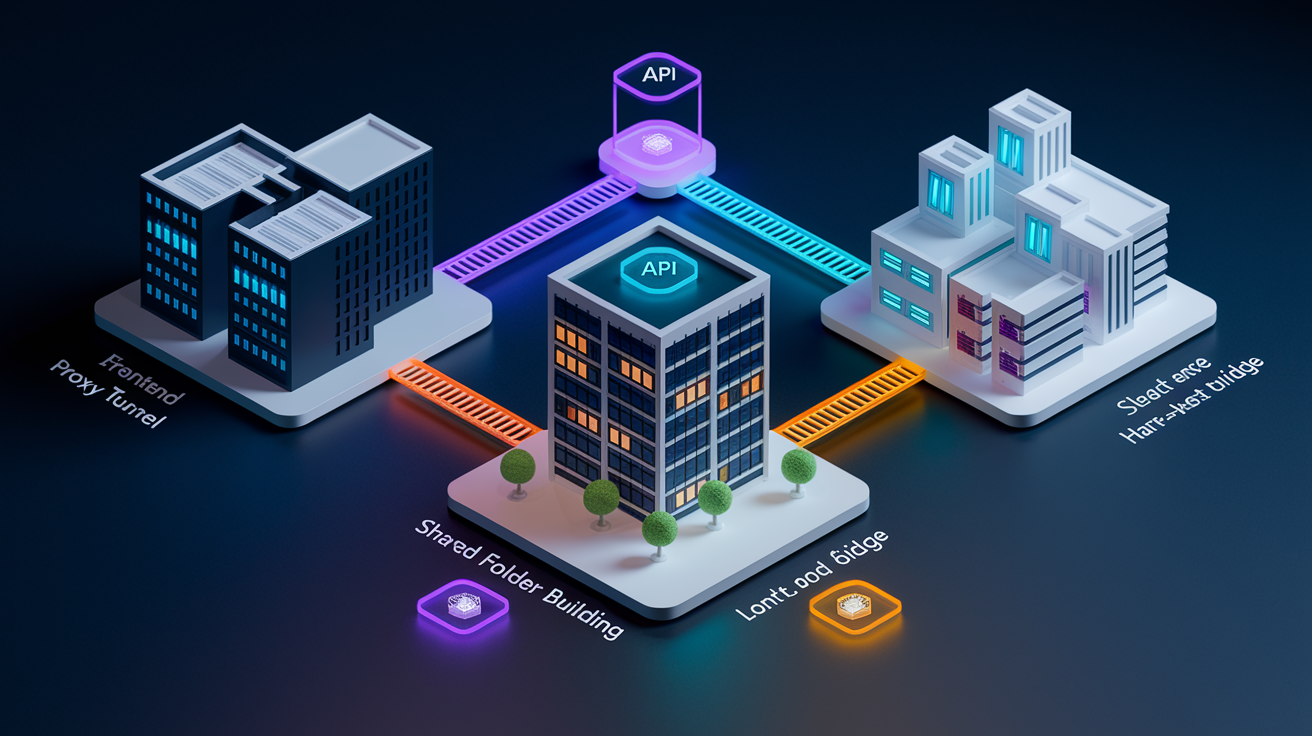
There are a few ways to connect your frontend to your backend without writing the full URL in every fetch call. Each one has pros and cons depending on how you’re testing and where you’re deploying.
If you’re using a build tool like Webpack or Vite, you can set up a proxy in your dev server config. The proxy tells your frontend “when you see /api, forward it to http://localhost:3000.” Your fetch calls can just say fetch('/api/secretmessage') instead of the full URL. Downside? If your backend runs on a dynamic port (like when you deploy to a platform that assigns ports randomly), the proxy won’t know where to send requests and everything breaks.
Another option is serving your built frontend files straight from your backend. After you build your frontend (turning your HTML, CSS, and JS into static files), copy them into a public folder inside your backend project. Add app.use(express.static('public')); in app.js. Now when you visit http://localhost:3000, the backend serves your index.html and your app can fetch from /secretmessage without worrying about ports. The catch is most build tools only update your static files when you run a build command, so you’ll need to rebuild every time you change your frontend code.
| Method | Description | Drawback |
|---|---|---|
| Webpack Proxy | Dev server forwards /api requests to backend automatically | Fails if backend port changes at runtime |
| Serve Static Files | Backend serves built frontend from a public folder | Requires rebuilding to see frontend changes |
| Direct Full URL Requests | Fetch calls use complete host:port in every request | Must update URLs manually when testing on different devices |
Debugging JavaScript Front End to Backend Connections

When something’s broken, the fastest way to figure it out is checking each piece separately. Start with your backend on its own. Open a browser and type in the full endpoint URL, like http://localhost:3000/secretmessage. If you see the response, your backend’s fine. If you get an error or the page just spins, your server isn’t running or the route’s wrong. Check your terminal to make sure node app.js is active and look for typos in your endpoint path.
Next, pop open your browser’s devtools (right-click anywhere on your page, choose Inspect, then click the Network tab). Refresh your frontend and click whatever button triggers your fetch. You’ll see the request show up in the list. Click it and check the status code. 200 means it worked. 404 means the endpoint doesn’t exist. 500 means your backend crashed. If you see a CORS error, install and enable the cors package like we covered earlier. If the request never shows up in the Network tab at all, your JavaScript isn’t running. Check the Console tab for syntax errors.
Here are the most common problems beginners run into:
- Backend isn’t running – make sure
node app.jsis active in your terminal. If you closed it or there’s an error, restart it. - Wrong URL or port – double-check the fetch URL matches exactly what your backend’s listening on. Typos will kill you.
- CORS error in console – install
corswithnpm i cors, add it toapp.js, restart your server. - File paths or folder structure – if your
index.htmland backend are in different folders, make sure your fetch URL points to the right place. Use full URLs during local testing so you’re not guessing.
Final Words
You wired a minimal Express backend, made GET endpoints, and watched the browser get JSON back. You learned why ports exist and how responses appear in the DOM.
You added fetch calls tied to a button, fixed CORS with the cors middleware, and explored proxy and static-serving options. You also used the browser network tab to debug requests.
If you followed along, you now know how to connect javascript front end to a simple backend for beginners — test it, tweak it, and build something useful.
FAQ
Q: How to connect backend to frontend in JavaScript?
A: Connecting a backend to a frontend in JavaScript means sending HTTP requests (fetch) from the browser to a server, receiving JSON responses, and updating the page; handle ports, CORS, and clear endpoints.
Q: Can you use JavaScript for frontend and backend?
A: You can use JavaScript for both frontend and backend: browser code handles UI, while Node.js runs server logic and APIs; common stacks use Express to create minimal JSON endpoints quickly.
Q: What is harder, C++ or JavaScript?
A: C++ is generally harder than JavaScript because it needs manual memory management, stricter types, and complex build steps; JavaScript is higher-level, dynamic, and easier for quick web projects.