

What if I told you you can go from zero to a working web app without installing anything?
JavaScript runs right in your browser, so your first code can run in sixty seconds.
This post walks you step-by-step: core ideas like variables and functions, using the developer console, talking to the DOM, and building small projects that actually work.
You’ll get hands-on tasks, quick wins, and simple fixes for common errors.
By the end you’ll have the skills to build real apps, not just copy examples.
Start Here: What JavaScript Is and How Beginners Can Start Learning
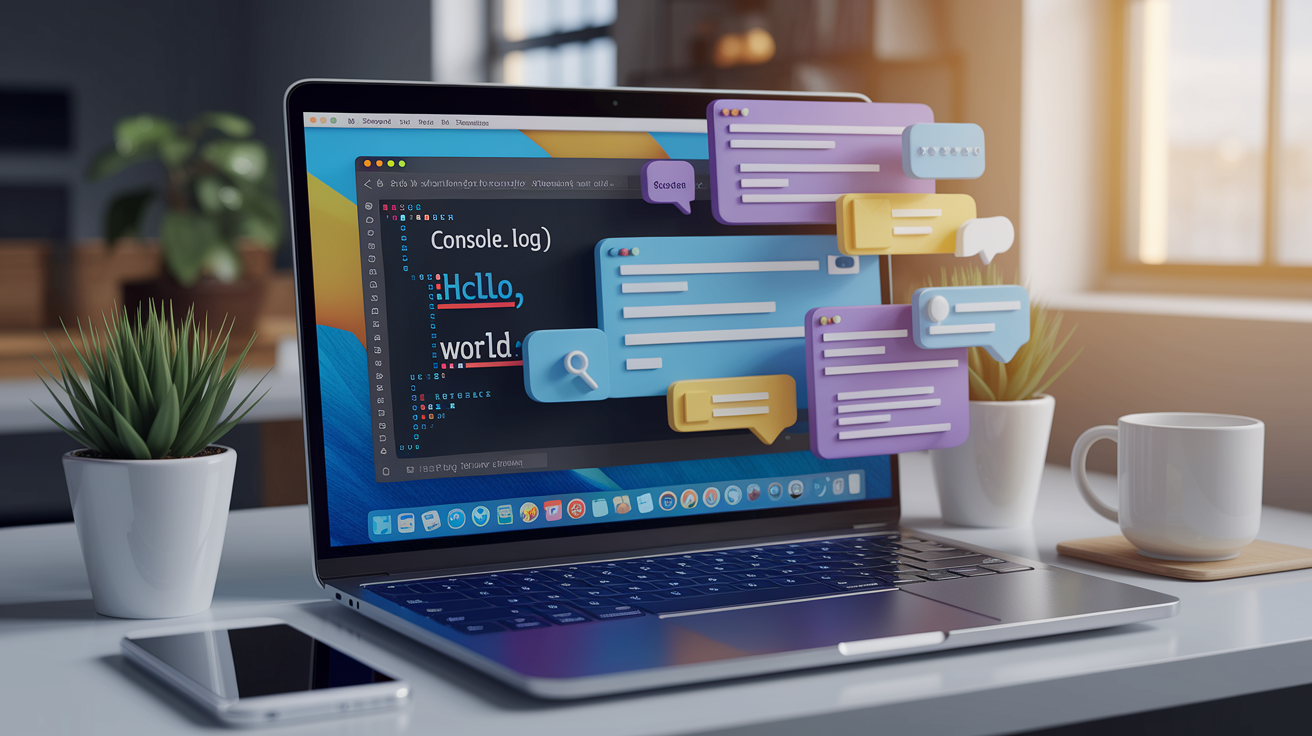
JavaScript is a programming language that runs nearly every interactive thing you see on a website. Drop-down menus, live search bars, form validations, animated graphics… all JavaScript. It executes right in your browser without needing extra software, and modern web pages depend on it to respond to what users do in real time. Beyond browsers, JavaScript also runs on servers through Node.js, making it one of the few languages that can handle both frontend and backend work in a single project.
Beginners pick JavaScript because there’s almost no barrier to entry. You can write your first line of code in your browser console within sixty seconds. No installation, no complex setup. Just open Chrome or Firefox, hit F12 to launch developer tools, switch to the Console tab, and type console.log("Hello, World!") then press Enter. This instant feedback helps new learners see results immediately, which builds confidence fast.
JavaScript fits into a beginner’s roadmap right after you understand basic HTML structure and CSS styling. HTML defines the page content. CSS makes it look good. JavaScript makes it interactive. Most learners follow this sequence because JavaScript needs something to interact with, and HTML provides that structure. Once you grasp variables, functions, and event listeners, you can start building simple dynamic features like counters or interactive forms that update on the page without reloading.
Here’s how you can start learning JavaScript today:
- Open your browser and use the developer console to run your first JavaScript statements. Try basic math like
5 + 10or print your name withconsole.log("Your Name"). - Learn variables by declaring
let age = 25;andconst name = "Alex";to understand how JavaScript stores information. - Write a simple function that takes a number and prints whether it’s even or odd using an
ifstatement. - Select an HTML element on a practice page using
document.querySelector("#myButton")and change its text when you click it. - Build one small project every week. Start with a counter button that increases a number each time you click it.
Core JavaScript Fundamentals Every Beginner Must Learn

Every JavaScript program is built from a handful of core concepts that beginners need to internalize before moving forward. Variables are the first building block. Think of them as labeled boxes where you store information you want to use later. You declare a variable with let when its value can change, like let score = 0;, or with const when the value should stay fixed, like const playerName = "Jordan";. JavaScript also supports var, but modern code avoids it because var behaves unpredictably with scope.
Data types tell JavaScript what kind of information sits inside a variable. The primitive types include strings (text wrapped in quotes, like "Hello"), numbers (integers and decimals, like 42 or 3.14), booleans (true or false), null (an intentional empty value), and undefined (a variable declared but not assigned). When you write let greeting = "Hi";, JavaScript automatically treats greeting as a string. If you write let count = 10;, it’s stored as a number. You don’t declare the type explicitly. JavaScript infers it.
Operators let you perform actions on values. Arithmetic operators like +, *, /, and % handle math. Comparison operators such as === (strict equality), !== (not equal), >, <, >=, and <= help you compare values and make decisions in your code. Assignment operators like =, +=, and ++ update variables. Logical operators like && (and), || (or), and ! (not) combine or invert boolean expressions. For example, if (age >= 18 && hasID === true) checks two conditions at once.
Comments and expressions round out the fundamentals. Comments let you explain code to yourself or others. Use // single-line comment or /* multi-line comment */. JavaScript ignores comments, so they won’t affect your program. Expressions are any valid unit of code that produces a value, like 5 + 3, userName.toUpperCase(), or isActive ? "Yes" : "No". Every expression can be stored in a variable or passed to a function.
Here are the essentials every beginner must practice:
- Variables: Use
letfor values that change andconstfor values that stay fixed. Avoidvarin new code. - Data types: Understand strings, numbers, booleans,
null, andundefined. JavaScript assigns types automatically. - Operators: Practice arithmetic (
+,*), comparison (===,>), and logical (&&,||) operators in real expressions. - Comments: Write
//for single-line notes and/* */for multi-line explanations. Use them to document tricky logic. - Expressions: Recognize that any code producing a value is an expression, including function calls and ternary conditionals.
- Execution flow: JavaScript runs line by line, top to bottom, unless a function, loop, or conditional changes the order.
Understanding Functions, Conditionals, and Loops

Functions are reusable blocks of code that perform a specific task. You define a function once and call it as many times as you need. A simple function looks like this: function greet(name) { return "Hello, " + name; }. When you call greet("Sam"), JavaScript executes the code inside the curly braces and returns "Hello, Sam". Functions can accept parameters (inputs) and return values (outputs), which makes them modular and testable. You can also write functions as expressions, like const add = function(a, b) { return a + b; };, or use arrow syntax: const add = (a, b) => a + b;.
Conditionals let your program make decisions based on true or false checks. The if statement runs a block of code only when a condition is true. You can chain else if for additional checks and else as a fallback. For example, if (temperature > 30) { console.log("Hot day"); } else { console.log("Cool day"); } prints different messages based on the temperature value. The switch statement offers a cleaner alternative when you’re comparing one value against multiple possibilities, like checking which day of the week it is.
Loops automate repetition so you don’t have to write the same code over and over. A for loop runs a set number of times. for (let i = 0; i < 5; i++) { console.log(i); } prints the numbers 0 through 4. A while loop continues as long as a condition remains true, like while (count < 10) { count++; }. The for...of loop iterates over arrays or other iterable objects, like for (const item of shoppingCart) { console.log(item); }. Each loop type fits different scenarios, but they all reduce manual repetition and keep code concise.
| Function | Conditional | Loop |
|---|---|---|
| Encapsulate reusable logic; accept inputs and return outputs | Branch execution based on true/false evaluations using if/else or switch | Repeat a block of code multiple times using for, while, or for…of |
Example: function double(x) { return x * 2; } |
Example: if (score >= 50) { pass = true; } |
Example: for (let i = 0; i < 3; i++) { alert(i); } |
| Use when you need to call the same operation in different parts of your program | Use when your program needs to choose between different code paths | Use when you need to process every item in a list or repeat until a condition changes |
Working With the DOM and Browser Interactivity

The Document Object Model, or DOM, is how JavaScript sees and interacts with the structure of a web page. When a browser loads HTML, it converts every element (paragraphs, headings, buttons, images) into a tree of objects. JavaScript can reach into that tree, select any node, and change its content, style, or attributes. For example, document.querySelector("h1") grabs the first <h1> element, and document.querySelectorAll(".card") returns a list of all elements with the class card. Once you have a reference to an element, you can modify it with properties like .textContent, .innerHTML, or .style.color.
Event listeners turn static pages into interactive experiences. An event listener waits for a specific action (like a click, keypress, or form submission) and runs a function in response. You attach an event listener with addEventListener, like this: button.addEventListener("click", function() { alert("Button clicked!"); });. When the user clicks that button, JavaScript executes the function and displays the alert. This pattern powers every interactive feature on the web, from dropdown menus to live search suggestions.
Updating the DOM in real time keeps users engaged without requiring page reloads. When a user submits a form, you can use JavaScript to validate the input, display error messages, or add a new item to a list on the page instantly. For example, after a user types their email and clicks Submit, your code can check if the email format is valid, then either show a success message or highlight the error. All within the same page load. This immediate feedback loop is what makes modern web apps feel fast and responsive.
Here are the most common DOM tasks every beginner should practice:
- Select elements: Use
document.querySelector()for a single element orquerySelectorAll()for multiple matches. - Change content: Set
.textContentto update the text inside an element or.innerHTMLto insert HTML markup. - Modify styles: Access the
.styleproperty to change CSS directly, like.style.backgroundColor = "blue";. - Handle events: Attach
.addEventListener("click", functionName)to respond to user actions like clicks or keypresses.
Essential Tools for Learning and Writing JavaScript
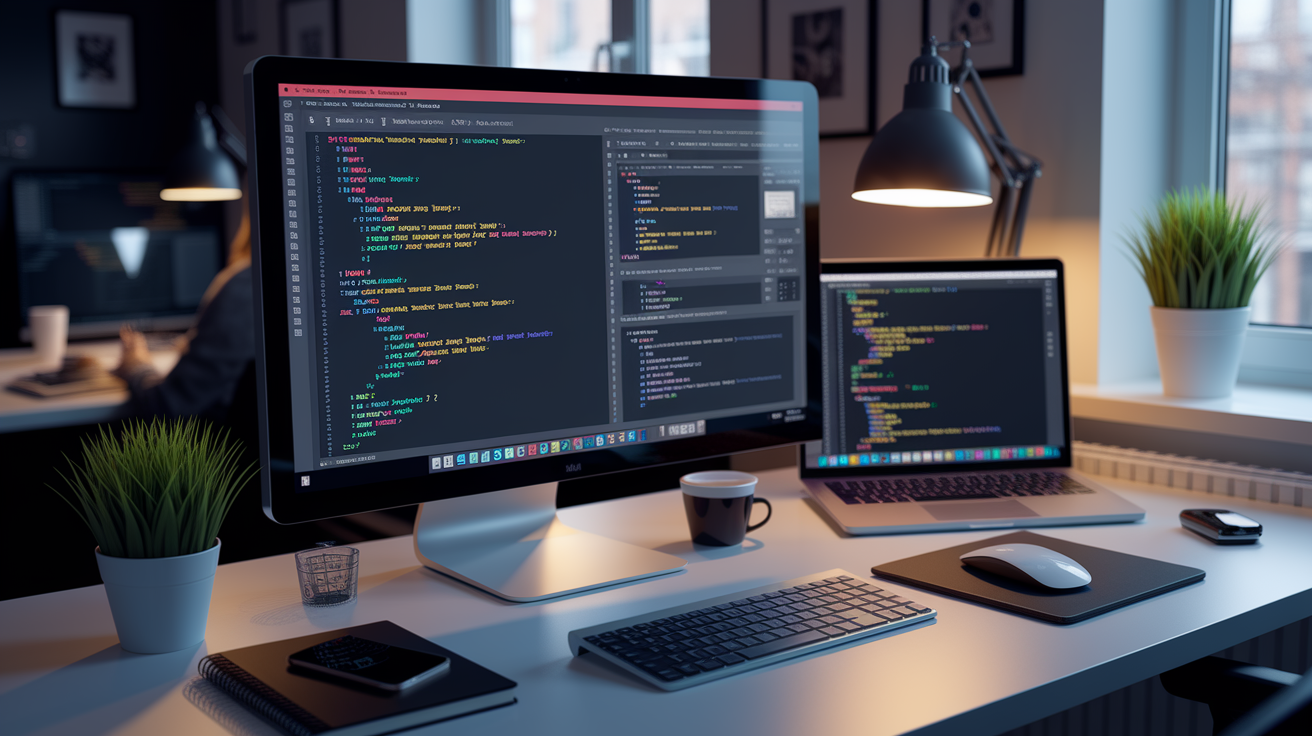
A good code editor makes writing JavaScript faster and less error prone. Visual Studio Code (VS Code) is the most popular choice among developers because it's free, supports syntax highlighting, offers auto-completion, and includes a massive library of extensions. Sublime Text and Atom are solid alternatives if you prefer a lighter interface. When you type code in VS Code, the editor highlights keywords in different colors, automatically closes brackets, and suggests completions as you type. These features prevent simple typos and help you focus on logic instead of syntax.
Browser developer tools are built into Chrome, Firefox, Edge, and Safari, and they give you a live console where you can test JavaScript statements, inspect the DOM, and debug errors. Press F12 or right-click and choose Inspect to open the developer tools. The Console tab lets you type JavaScript directly and see results instantly. Try Math.random() to generate a random number or document.body.style.backgroundColor = "lightblue"; to change the page background. The Elements tab shows the DOM structure, and the Sources tab lets you set breakpoints to pause code execution and examine variable values step by step.
Node.js extends JavaScript beyond the browser so you can run scripts on your computer or build backend servers. Download the installer from the official Node.js website, and once installed, you can execute JavaScript files from the command line by typing node filename.js. Node.js also includes npm (Node Package Manager), which gives you access to thousands of libraries and frameworks. Beginners use Node.js to practice JavaScript in a terminal, automate tasks, or experiment with server-side code without needing a browser.
Beginner-Friendly Practice Projects to Build JavaScript Skills
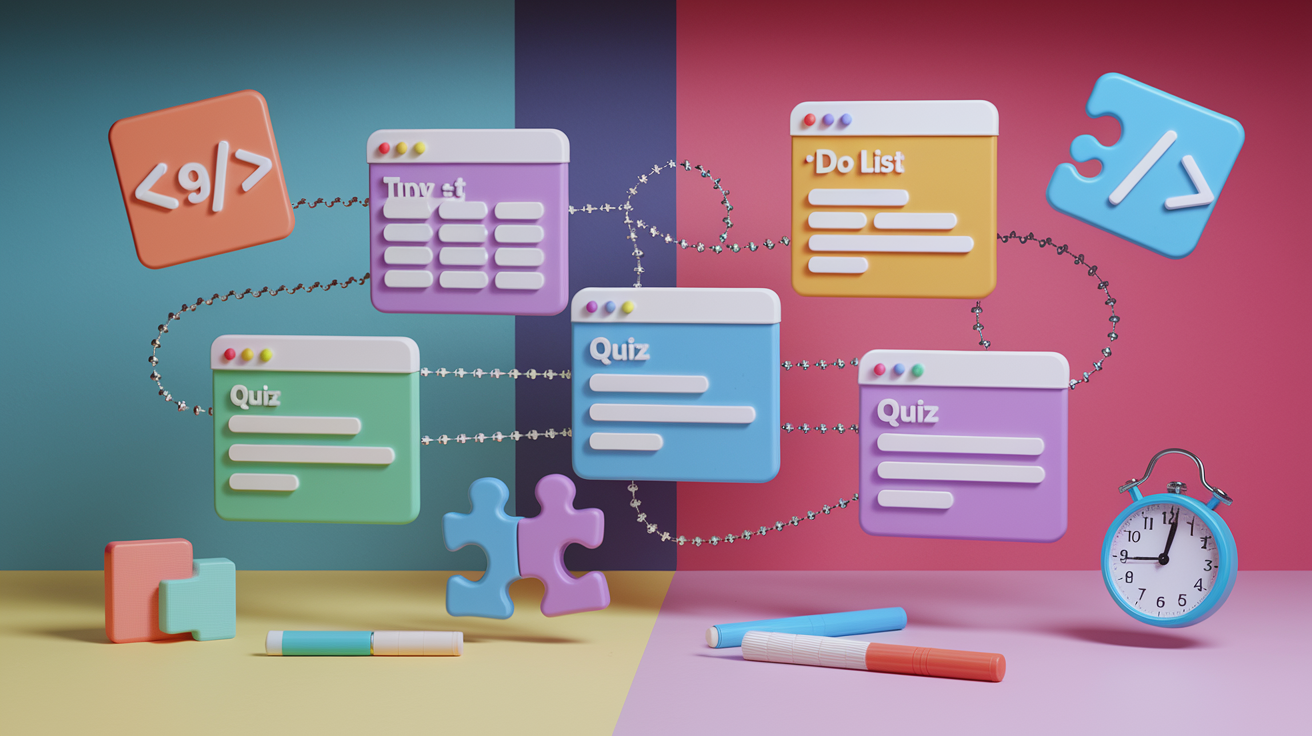
Building small projects is the fastest way to move from reading about JavaScript to actually writing it. Each project forces you to solve real problems (selecting elements, handling user input, updating the DOM) and those repetitions turn concepts into habits. When you finish a working project, you gain confidence and a portfolio piece you can share with potential employers or use as a reference for future builds.
Start with projects that reinforce the fundamentals you've learned so far:
- Counter app: Create a button that increases a number on the page each time you click it. Practice variables, event listeners, and DOM updates.
- Simple calculator: Build buttons for digits and operators, then display the result when the user clicks equals. Work with functions, conditionals, and event handling.
- To-do list: Let users type a task, click Add, and see it appear in a list. Learn array manipulation, DOM creation, and delete functionality.
- Random quote generator: Store an array of quotes and display a new one each time the user clicks a button. Practice arrays, random selection, and text updates.
- Quiz app: Show multiple-choice questions one at a time, track the score, and display results at the end. Combine loops, conditionals, and form handling.
- Basic stopwatch: Use
setIntervalto increment a timer every second and display elapsed time. Introduce asynchronous timing and state management.
Project-based learning accelerates skill development because it mirrors real workflows. Instead of isolated exercises where you write one function at a time, projects require you to connect functions, manage state across user interactions, and debug when things break. Each bug you fix teaches you more than a perfect example ever could. By the time you've completed six small projects, you'll have touched every core JavaScript concept multiple times. That repetition is what moves knowledge from short-term memory into long-term skill.
Next Steps: How to Advance Your JavaScript Skills Further

Once you're comfortable with variables, functions, loops, and DOM manipulation, the next frontier is asynchronous programming. JavaScript runs in a single-threaded environment, which means it executes one task at a time. When you need to fetch data from an API, wait for a user file upload, or delay an action, you use asynchronous techniques so the browser doesn't freeze. Start with setTimeout and setInterval to delay functions, then move to Promises, which represent operations that complete in the future. Modern JavaScript uses async and await syntax to handle Promises cleanly. await fetch(url) pauses the function until the data arrives, then continues execution.
Working with JSON and external APIs opens the door to dynamic, data-driven applications. JSON (JavaScript Object Notation) is a text format that represents objects and arrays, and most web APIs return data in JSON. You'll use the Fetch API to request data from a server: fetch("https://api.example.com/data").then(response => response.json()).then(data => console.log(data));. This pattern lets you pull live weather, stock prices, or user profiles into your app. Practice by connecting to free public APIs like OpenWeather or JSONPlaceholder, then display that data on a page.
Frameworks and libraries become relevant when your projects grow complex. React, Vue, and Angular are frontend frameworks that organize code into reusable components, manage application state, and optimize rendering. You don't need a framework for small projects. But once you're building multi-page apps with dozens of interactive elements, frameworks prevent your codebase from turning into a tangled mess. Start learning a framework only after you're confident with vanilla JavaScript. Frameworks abstract core concepts, and you'll struggle if you don't understand what they're abstracting.
Here are four milestones to guide your progression beyond the basics:
- Master asynchronous JavaScript: Learn Promises,
async/await, and the event loop so you can fetch data and handle delays without blocking the UI. - Build an app that calls a real API: Connect to a public API, fetch JSON data, parse it, and display results dynamically on your page.
- Understand ES6+ features: Study arrow functions, destructuring, template literals, and modules to write modern, concise JavaScript.
- Start a framework: Pick React, Vue, or Angular and rebuild one of your existing projects using components, state management, and routing.
Final Words
You jumped straight into JavaScript basics, then pushed through functions, conditionals, loops, DOM interaction, practical tools, and beginner projects that make concepts stick.
Try the quick-start steps and build one small project from the list. Use VS Code, the browser console, and Node.js to run and debug as you go.
To learn javascript programming, pick a project, ship a tiny feature, and repeat. Small wins add up fast. Keep going — you’ll see real progress soon.
FAQ
Q: What is JavaScript and why should beginners learn it?
A: JavaScript is a programming language that makes web pages interactive, runs in browsers and on servers (Node.js), and is essential because it powers modern web apps and user interfaces.
Q: How do I start learning JavaScript as a beginner?
A: To start learning JavaScript, open a code editor, practice variables and functions, run code in the browser console, follow small tutorials, and build tiny projects to reinforce skills.
Q: What core JavaScript fundamentals should I learn first?
A: Core fundamentals to learn first are variables (let, const), primitive types (string, number, boolean, null, undefined), operators, comments, expressions, and basic execution flow like sequential code and simple functions.
Q: What is the difference between let and const in JavaScript?
A: The difference is let declares a block-scoped variable you can reassign, while const creates a block-scoped constant you cannot reassign; use const by default and switch to let when reassignment is needed.
Q: How do functions, conditionals, and loops work in JavaScript?
A: Functions are reusable code blocks that can take inputs and return values, conditionals (if/else, switch) control branching, and loops (for, while, for…of) repeat actions over data or until a condition changes.
Q: How does JavaScript interact with the DOM and web pages?
A: JavaScript interacts with the DOM by selecting elements (querySelector), changing text and styles, and adding event listeners (click, input) to update the page live when users interact.
Q: What tools do I need to write and run JavaScript?
A: To write and run JavaScript you need a code editor like VS Code, browser devtools for debugging and console testing, and Node.js if you want to run JavaScript outside the browser.
Q: What beginner projects should I build to practice JavaScript?
A: Beginner projects to build include a to-do app, calculator, quiz, form validator, tip calculator, and simple memory game; each teaches DOM manipulation, events, and basic app logic.
Q: What are the next steps after learning JavaScript basics?
A: Next steps after basics are learning asynchronous JavaScript (promises, async/await), working with JSON and APIs, studying a framework like React, and building full-featured projects with tooling and testing.
Q: How long does it take to become comfortable with JavaScript?
A: Becoming comfortable with JavaScript usually takes a few months of regular practice and small projects; consistent daily practice and building four to six real mini-projects speeds learning significantly.