

Think web design is just making things pretty? Think again.
Good sites are more like well-built shops where visitors get things done without thinking.
This post covers the core principles you need for your first website: HTML for the bones, CSS for the look, layout, typography, color, and responsive basics so it works on phones.
Master these and you’ll avoid common traps like broken layouts, unreadable text, and poor contrast, and ship a site that feels polished and actually usable.
Core Foundations of Web Design
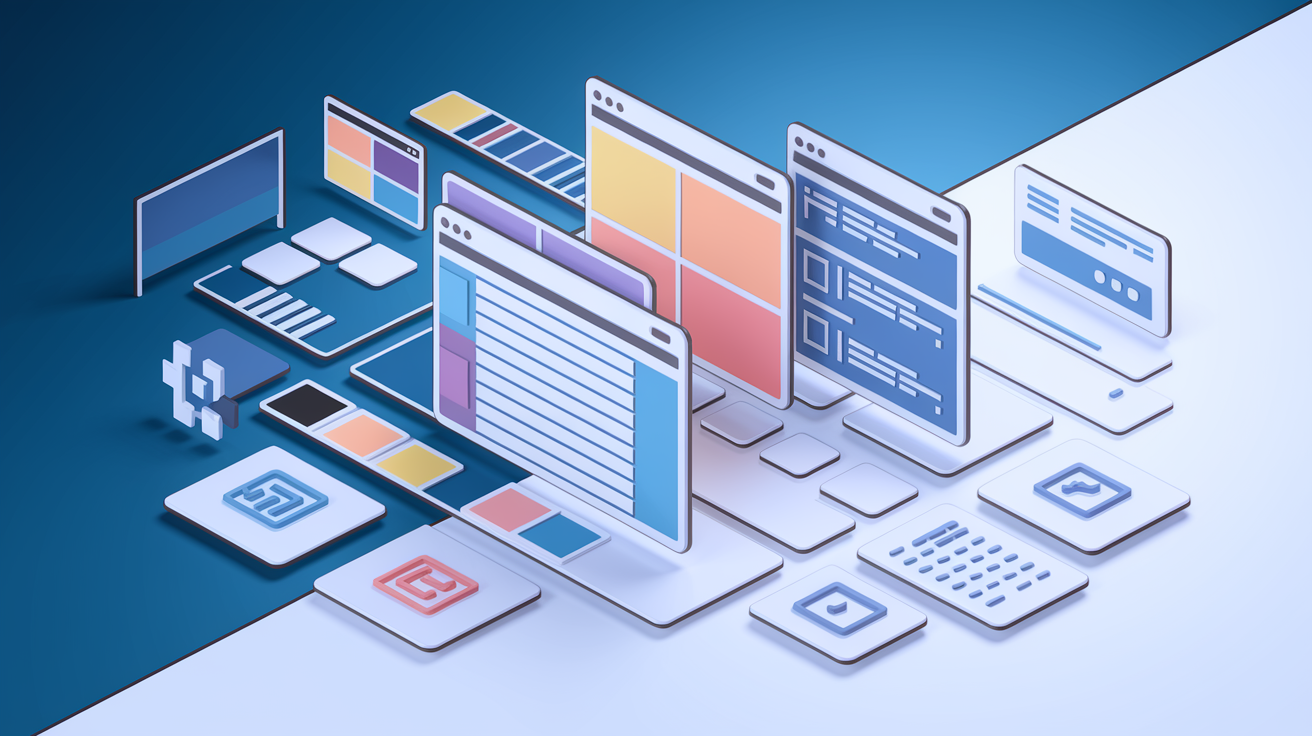
Web design is about planning, structuring, and creating what websites look like and how they work. It’s not just “making things pretty.” You’re building interfaces people can actually use to get stuff done, whether that’s reading an article, signing up for something, or buying a product. Think of it as blending visuals, tech, and a bit of psychology into one workflow that moves visitors from “just landed here” to “okay, I did what I came for.”
Good web design lives where structure, style, and usability meet. Structure gives you the bones: headers, paragraphs, links, containers arranged so things make sense. Aesthetics bring in the visuals through color, fonts, spacing, images. Usability makes sure real humans can find what they need without wanting to throw their laptop. Break the structure? Site falls apart. Ignore aesthetics? People don’t trust you. Weak usability? They’re gone. You need all three working together to feel both polished and easy.
Learning the basics matters because design decisions pile up fast. Skip foundational stuff and you’ll end up with layouts that explode on mobile, color schemes that fail accessibility, or text nobody can read. Get the core principles down first and you’ll prevent those mistakes. Plus you’ll feel confident enough to experiment, customize templates, troubleshoot when things break, and design with actual intention instead of just guessing.
Here are six building blocks every beginner needs to understand:
- HTML structures your content into headings, paragraphs, links, images, sections.
- CSS controls colors, fonts, spacing, borders, how things are positioned.
- Layout arranges visual elements using grids, alignment, spacing to guide where people look.
- Typography handles font choices, sizes, line heights, text hierarchy for readability.
- Color basics cover choosing palettes, making sure there’s enough contrast, applying color consistently.
- Responsive considerations mean designing layouts that adapt from phones to desktops.
Understanding HTML: The Structural Backbone

HTML (HyperText Markup Language) is the foundation of every site. It defines what content exists and how it’s organized. Headings, paragraphs, lists, images, links, buttons, forms all come from HTML tags. Without HTML, browsers wouldn’t know what to display or where to put a photo. Think of it as the blueprint. It tells the browser “this is a headline, this is a paragraph, this is a link you can click.” The browser renders those instructions into visible stuff.
Beginners usually start with a handful of essential tags and build from there. You don’t need to memorize everything. Just understand how tags create structure and hierarchy. Wrapping text in an <h1> tag marks it as the most important heading. <p> tags define paragraphs. Links use <a href="URL"> syntax. Images use <img src="file.jpg" alt="description">. That alt text isn’t optional, by the way. It helps screen readers describe images to visually impaired users and improves search indexing. Once you get how tags nest inside each other to build sections, nav bars, content blocks, you can read other people’s code and learn from real examples.
Common HTML tags to learn first:
<h1>through<h3>for headings that establish content hierarchy.<p>for paragraphs of body text.<a href="">for hyperlinks connecting pages.<img src="" alt="">for images with descriptive alt text.
CSS Essentials for Styling Websites
CSS (Cascading Style Sheets) makes websites look polished instead of just black text on a white background. HTML creates the structure. CSS applies the design layer on top: colors, fonts, spacing, borders, shadows, layout positioning.
CSS works by targeting HTML elements and applying visual properties. You can say “make all paragraphs use 16-pixel gray text” or “give buttons a blue background and white text.” Key properties you’ll use constantly include color for text color, background-color for element backgrounds, font-size and font-family for typography, margin and padding for spacing, border for outlines, width and height for sizing. Modern CSS also has powerful layout tools like Flexbox and CSS Grid that let you build responsive, flexible structures without guessing at pixel widths. Once you understand how properties work, you can customize nearly every visual detail.
CSS connects to HTML through selectors. A selector tells the browser which elements to style. You can target all <p> tags with a simple p { } rule. Or assign a class like <p class="intro"> and target it with .intro { } in your CSS file. IDs work the same but are meant for unique elements: <div id="header"> pairs with #header { } in CSS. Classes let you reuse styles across multiple elements, which keeps your code clean and maintainable. Cleaner selectors make it easier to update designs later without breaking the layout.
Basic Layout Principles for Beginners
Layout is how you arrange elements on a page to guide attention and create visual order. A strong layout feels balanced, organized, easy to scan. A weak one feels cluttered, random, hard to navigate. Beginners often underestimate how much layout affects usability. Users decide whether to stay or leave within seconds, and layout clarity drives that decision. Good layout isn’t about adding complexity. It’s about organizing content so users know where to look first, what to do next, how to find what they need.
Effective layouts rely on grids, consistent spacing, alignment, visual hierarchy. Grids create invisible structure: columns and rows that keep elements lined up and proportional. Spacing (margin and padding) gives content room to breathe and prevents clutter. Alignment keeps edges and centers matched, which builds a sense of order and professionalism. Visual hierarchy uses size, weight, color, position to show importance. Headlines are bigger and bolder than body text. Primary buttons stand out more than secondary links. Balance means distributing visual weight evenly so the page doesn’t feel lopsided. Master these basics and your designs will look intentional and easy to use, even before you add advanced touches.
Five fundamental layout concepts every beginner should understand:
- Grid systems provide invisible column structures that organize content into aligned sections.
- Spacing includes margin (space outside elements) and padding (space inside elements) that prevent crowding.
- Alignment keeps edges, centers, baselines lined up to create visual order.
- Hierarchy uses size, weight, contrast to show which elements matter most.
- Balance distributes visual weight so layouts feel stable, not top-heavy or lopsided.
Introduction to User Experience (UX) Principles

User experience (UX) is the practice of designing websites that are easy, intuitive, pleasant to use. UX isn’t just about making things look nice. It’s about reducing friction, meeting user needs, ensuring visitors can complete their goals without confusion or frustration. A site with great UX feels obvious. Buttons do what you expect. Navigation is clear. Forms are short. Errors are explained. Users get what they came for and leave satisfied. A site with weak UX makes people think too hard, click the wrong things, or give up and hit the back button.
UX overlaps heavily with design, but it focuses on behavior and outcomes instead of pure aesthetics. Beginners sometimes think UX is complicated. It starts with simple questions: Can users find the information they need? Do interactive elements look clickable? Is the text readable? Does the layout work on phones? If the answer to any of those is “no,” the UX needs work. Small improvements (clearer labels, bigger touch targets, logical page flow) often have bigger impact than visual redesigns.
Strong UX relies on four core principles: usability, accessibility, simple navigation, clarity. Usability means the site works as expected with minimal learning curve. Accessibility ensures people with disabilities (vision impairment, motor challenges, cognitive differences) can use the site effectively. This includes readable text, keyboard navigation, descriptive alt text for images. Simple navigation means users know where they are, where they can go, how to get back. Clarity means every page has an obvious purpose, every button has a clear label, every interaction produces a predictable result.
Key UX Concepts
Usability is whether users can accomplish tasks efficiently and without errors. Accessibility is whether everyone, regardless of ability, can perceive and interact with the content. Simple navigation is a structure that guides users logically from page to page without forcing them to hunt for links. Clarity is the elimination of ambiguity. Users shouldn’t have to guess what a button does, where a link goes, or what action to take next. These concepts work together to create interfaces that feel helpful instead of frustrating.
Tools Beginners Can Use to Start Designing

Beginners don’t need expensive or complex software to start learning web design. The tools you choose depend on whether you want to focus on visual design, code, or both. Visual design tools let you create layouts, color schemes, mockups without writing code. Code-focused tools give you direct control over HTML and CSS, which teaches you how sites actually work. Many beginners start with a mix: design tools to sketch ideas, then simple code editors to bring those ideas to life.
Popular beginner-friendly tools include Figma for wireframes and visual mockups, Canva for quick graphics and color exploration, WordPress or site builders for no-code website creation, and lightweight code editors like Visual Studio Code for writing HTML and CSS by hand. Each tool has trade-offs. Visual tools are fast and forgiving, but you don’t learn the underlying code. Code editors give you full control and deep learning, but the early learning curve is steeper. Beginners often benefit from trying both approaches. Use a visual tool to understand layout principles, then rebuild simple versions in code to see how CSS rules create the same effects.
| Tool | Primary Use | Beginner Difficulty Level |
|---|---|---|
| Figma | Visual design, wireframes, mockups | Low (drag-and-drop interface, free plan available) |
| Canva | Graphics, color palettes, quick layouts | Very Low (templates and simple editing tools) |
| WordPress | No-code website building, content management | Low to Medium (easy setup, steeper customization) |
| Visual Studio Code | Writing and editing HTML, CSS, JavaScript | Medium (requires learning code syntax and file structure) |
Final Words
We walked through core foundations: what web design is, how HTML shapes structure, how CSS styles it, layout principles, UX basics, and beginner tools.
You got lists of essential building blocks and common HTML tags, plus simple layout and UX tips you can use right away.
Use those steps to build a small page, tweak typography, and test on mobile. If something breaks, check the structure first, then the styles.
Keep practicing. Web design basics become clearer with hands-on projects. You’re set to make something that looks and works well.
FAQ
Q: What are the 5 basic principles of web design?
A: The 5 basic principles of web design are clear layout (structure), visual hierarchy, readable typography, effective color and contrast, and responsive usability that works across devices and screen sizes.
Q: What are the 7 C’s of web design?
A: The 7 C’s of web design are context (layout), content (information), community (user interaction), customization, communication, connection (links), and commerce—these guide purpose-driven design choices.
Q: What are the basics of web designing?
A: The basics of web designing include structure (HTML), styling (CSS), layout and spacing, typography, color choices, and responsive considerations to make sites usable and visually clear.
Q: What are the 7 steps to web design?
A: The 7 steps to web design are define goals, research users, plan sitemap and wireframes, create visual mockups, build pages (HTML/CSS), test for usability and responsiveness, then launch and maintain.

